
Do you have multiple Google calendars, one for personal use, one for work, and maybe even one for team projects? Trying to keep track of your schedule across several calendars can make it harder to stay on top of everything. Have you ever found yourself missing an important event because it was buried in a different calendar, or spending time switching between them to check your availability? It’s frustrating, right?
The good news is, there’s a way to bring everything together. In this guide, we’ll show you how to connect two Google calendars, so you can view everything in one place, stay organized, and avoid scheduling conflicts.
Key Takeaways
- Managing Multiple Calendars is Challenging: Juggling personal, work, and team calendars often leads to missed events, scheduling conflicts, and wasted time switching between accounts.
- Merging Calendars Enhances Organization: Connecting two or more Google calendars into one unified view helps you keep track of all your events, streamlines scheduling, and eliminates the risk of double bookings.
- Manual Methods Aren't Enough for Real-Time Syncing: Methods like sharing calendars are useful for viewing events, but they don’t offer true two-way sync or real-time updates.
- Clockwise Solves Calendar Management Issues: Clockwise’s AI-powered tools provide real-time syncing, smart scheduling, and automatic availability management, eliminating the need for manual calendar updates and reducing scheduling conflicts.
- Best Practices for Optimized Calendars: Use color coding, block time for focused work, and set reminders to stay organized. Leave flexibility for ad-hoc tasks, and automate your calendar to save time and reduce errors.
Why You May Need to Connect Two Google Calendars and How It Will Benefit You
Connecting or merging your calendars offers several advantages, helping you stay organized and on top of your schedule without the usual headaches. Here are the key benefits:
- Keeps Work and Personal Calendar Events Separate: By connecting two Google calendars, you can clearly distinguish between work-related and personal events, so that your professional and personal life don’t overlap.
- Efficient Project Management: When your calendars are connected, managing team schedules and project timelines becomes simpler, as you can see all deadlines and meetings at a glance.
- Eliminates Unnecessary Back-and-Forth Emails: With synced calendars, scheduling meetings becomes seamless, eliminating long email threads to find a time that works for everyone.
- Multi-Device Syncing: Whether you’re using your phone, laptop, or tablet, syncing your calendars maintains consistency and up-to-date of events across all devices, giving you access to your schedule wherever you go.
Also Read: How to Use Google Calendar: Your Comprehensive Guide | Clockwise
These benefits make a strong case for calendar integration. The process itself is straightforward and takes just a few minutes to complete.
How to Connect Two Google Calendars: A Step-by-Step Guide

Connecting your Google calendars can be a game-changer, especially when you’re managing multiple accounts for work. Here’s how you can merge events from multiple Google calendars into one unified view by exporting and importing calendar data.
Step 1: Open Google Calendar in Your Browser
Start by opening Google Calendar in your web browser. If you have multiple Google accounts, make sure you're logged into the account where you'd like to add or merge other calendars.
Step 2: Access Calendar Settings
Once you’re in Google Calendar, click on the gear icon in the top-right corner of the page. From the drop-down menu, select Settings. This will take you to the settings page where you can manage your calendars, import/export data, and customize your calendar view.
Step 3: Export Your Existing Google Calendar
In the left-hand menu, find the calendar you want to merge or connect. Under Settings for my calendars, click on the name of the calendar to open its settings. Then, scroll down to Import & Export and select the Export option.
This will download a ZIP file containing your calendar's data in .ics format. Extract the file from the ZIP archive once it’s downloaded.
Step 4: Log in to the Other Google Account
Next, sign in to the Google account where you want the calendars to be merged. If you're already logged in, switch to the calendar view of that account.
Step 5: Import the Calendar Data
Now, go back to Settings in Google Calendar and, once again, navigate to the Import & Export section. This time, click Import. You’ll be prompted to select the .ics file you extracted earlier.
Choose the calendar you want to import the events into (this can be your primary Google Calendar or a separate one you manage). Then click Import.
Step 6: Review Your Merged Calendar
Once the import is complete, head back to your main calendar view. You should see the events from the other calendar(s) now showing up in your unified calendar. Take a moment to adjust the settings for each calendar with color coding or managing reminders.
Step 7: Adjust Your Calendar Settings (Optional)
Finally, customize your calendar to make sure everything is organized exactly how you need it. You can tweak the view settings, event notifications, and more to align with your personal or work preferences. By doing this, you’ll get a clear, consolidated view of your schedule, no more switching between accounts.
Also Read: Scheduling Pro Tips for Calendar Management | Clockwise
Tip: Once you've connected and merged your calendars, this will sync calendar automatically across all your devices where you're signed into Google Calendar. Whether you're on your phone, tablet, or desktop, your events will stay updated across platforms without any manual intervention.
While the method above allows you to connect Google calendars and view them in one unified space, there are several other ways to manage multiple calendars to stay connected, whether for visibility or real-time syncing.
Optimizing Your Calendar After Merging: Making the Most of a Unified Schedule

Merging your Google calendars is a great first step in organizing your schedule. However, it’s only part of the process. To make your calendar work for you, it’s crucial to regularly optimize your calendar. Here’s how you can make the most of your unified calendar, so that it matches your current priorities.
- Prepping for Success: A Productive Start: To get the most from your calendar, take a moment to review it the night before your workday starts. This quick check will give you a clear idea of what’s ahead and allow you to prepare without the distractions of the day.
- Color Code for Clarity: Once you've merged your calendars, prioritize your events using a color coding system. For instance, you could choose brown for focused work time, blue for meetings, and orange for significant projects.
- Automate Where You Can: Many calendar tools now offer automatic scheduling features that recommend the best time for meetings based on availability. Instead of manually finding a meeting time, your calendar can handle that for you.
- Be Selective with Meetings: If you’re finding yourself in too many meetings, it might be time to assess which ones are truly valuable. Ask for an agenda ahead of time to gauge whether the meeting will be useful.
- Use Asynchronous Collaboration Tools: Alongside your calendar, consider using asynchronous collaboration platforms that allow you to manage tasks and projects without needing real-time meetings.
- Block Time for Focused Tasks: Your calendar shouldn’t just be for meetings; to make it easier, block off specific periods for focused work. By setting aside focused time for tasks, you create space in your day that’s free from interruptions.
- Leave Room for Flexibility: While having a structured calendar is key, it’s also important to leave some flexibility for unexpected events. Things will come up that require your attention, and your calendar should allow for quick adjustments.
- Managing Ad-Hoc Requests Strategically: When an unplanned task or meeting arises, evaluate its importance and fit it into your schedule in a way that won’t disrupt the most critical parts of your day.
The export-import method works well for most situations. But depending on your specific needs, whether it's real-time updates or team collaboration, you might want to explore other options.
Other Methods to Connect Two or More Google Calendars
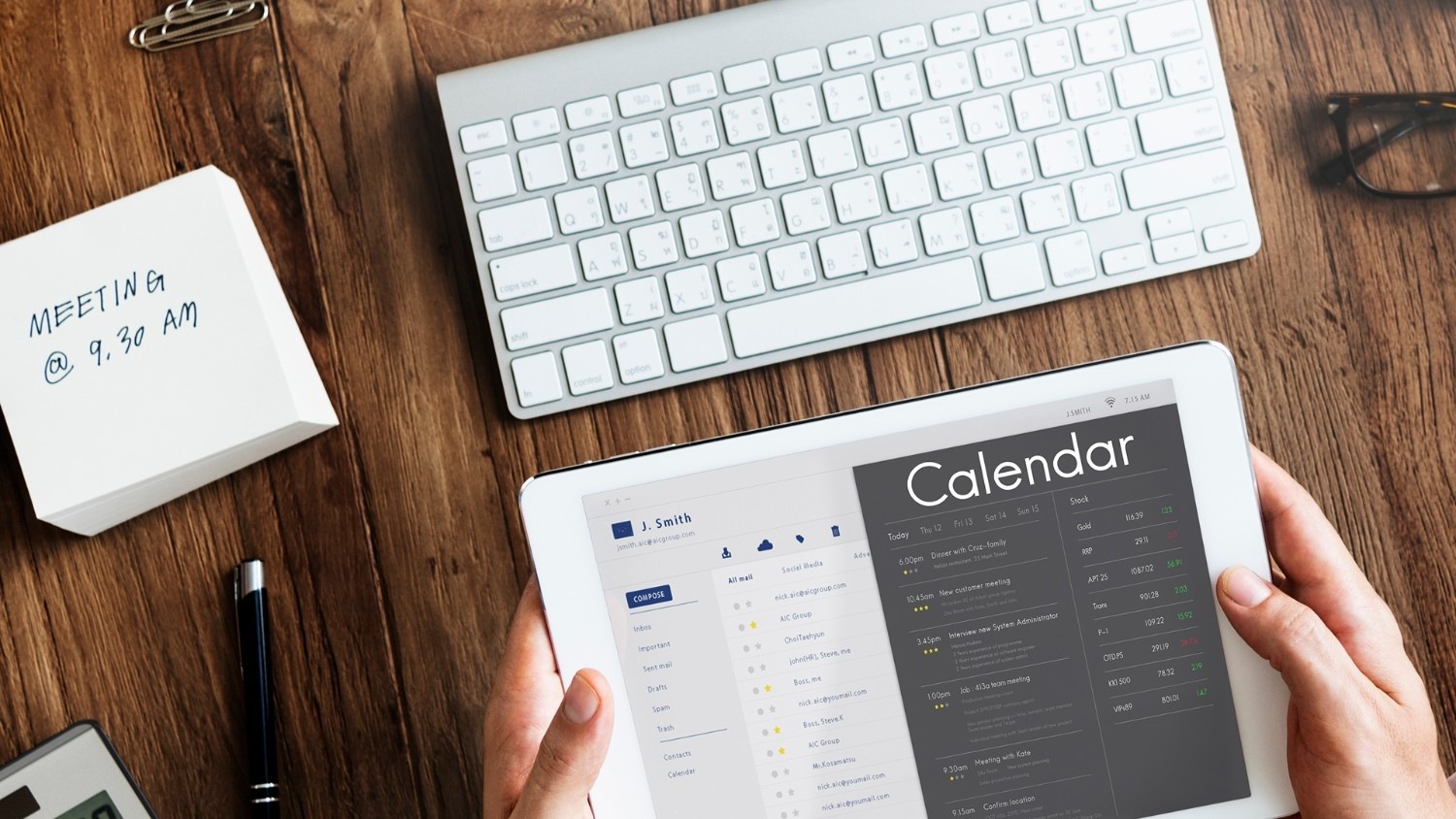
There are several ways to connect Google calendars, each serving different needs, whether it’s for better visibility, collaboration, or integration. Below are the main methods to connect two or more Google calendars, depending on what you’re looking to achieve.
Method 1: Sharing Google Calendars (One-Way View)
This method allows you to share a Google Calendar with another account, providing view-only or edit access based on your preferences. It’s helpful when you want others to see your schedule without letting them make changes, maintaining control over your calendar while offering visibility to others.
Method 2: Adding Google Accounts to View Multiple Calendars
By adding multiple Google accounts to one Google Calendar app, you can view events from all linked accounts in one place. This method simplifies managing multiple calendars, but it does not sync or merge the calendars; it only consolidates them for easy viewing.
Method 3: Using iCal to Add Calendars for Viewing
You can add a calendar from one Google account to another using an iCal URL, consolidating events in one view. However, updates may take time to appear, and this method doesn’t offer real-time syncing or full calendar merging; changes made in one calendar will not immediately reflect in the other.
Method 4: Using Third-Party Tools for Full Two-Way Sync
Third-party tools like Clockwise offer real-time two-way syncing, where changes made in one calendar are instantly reflected across all connected calendars. This method eliminates the need for manual updates and provides an intelligent scheduling experience, automating availability management across your calendars.
Among the third-party options available, Clockwise stands out for its ability to actively manage your schedule rather than just display it. Here's what makes it different from basic calendar viewing.
Advanced Features of Clockwise for Google Calendar Integration
Clockwise is built not just for viewing multiple calendars, but for actively managing your day through AI‑powered scheduling. It handles rescheduling, consolidates events across calendars, and creates uninterrupted “focus blocks”, which is useful when you’ve linked several Google Calendars and want one coherent view without dropping tasks or meetings.
- Preference Learning: Clockwise adapts to how you work, your preferred hours, meeting flexibility, and even lunch breaks. This helps when multiple Google Calendars feed into one schedule, because it knows how to fit them together.
- Real‑Time Optimization: It examines existing commitments across calendars and shifts events dynamically as changes occur, so when two Google Calendars are connected, it doesn’t just show both; it manages both.
- Meeting Automation: If you have two linked calendars, multiple attendees, and different time zones, Clockwise simplifies scheduling by suggesting optimal times, creating scheduling links, and managing invites without manual coordination.
- Multi‑Calendar Sync and Integration: Beyond just Google Calendars, Clockwise integrates with Slack, recognizes travel time, and syncs personal & work calendars.
- Team‑Level Analytics & Controls: For organizations connecting multiple calendars across teams (many Google Calendars feeding into one system), Clockwise provides visibility into meeting load and helps set team boundaries like “no‑meeting days”.
With these tools and methods at your disposal, you have everything you need to take control of your calendar chaos. The key is choosing the approach that matches how you work.
Wrapping Up
Managing multiple Google calendars can quickly become overwhelming, but connecting and organizing them can transform the way you handle your time. Whether you prefer sharing, adding multiple accounts, or using third-party tools for two-way sync, there’s a method that fits your needs. By merging your calendars and organizing them with color codes, time blocks, and strategic meeting management, you can stay ahead of your schedule without the confusion of scattered events.
Clockwise takes this a step further by offering AI-powered solutions for managing and syncing multiple Google calendars. Sign Up Today, take control of your time like never before.
FAQs
1. Can I merge two Google accounts together?
You cannot fully merge two Google accounts, but you can connect them by sharing calendars or using third-party tools to sync events between them. This allows you to view events from both accounts in one place.
2. Can I transfer my entire Google Calendar to another account?
Yes, you can transfer your Google Calendar events by exporting your calendar from one account and importing it into another. This method consolidates your events, but changes made in one account won’t reflect in the other unless synced via a third-party tool.
3. How do I export my entire Google Calendar?
To export your Google Calendar, go to Settings > Import & Export in Google Calendar. Click on Export to download your calendar data in an .ics file format, which can then be imported into another account.
4. Can I back up my Google Calendar?
Yes, Google Calendar automatically syncs with your Google account, but you can also manually export your calendar to an .ics file as a backup. This file can be stored on your device or in cloud storage for safekeeping.
5. How do I transfer my Calendar to my new phone?
To transfer your Google Calendar to a new phone, simply sign in to the same Google account on your new device. Your calendar will automatically sync with the Google Calendar app, ensuring all your events are available on your new phone.
About the author

Kacy is the VP of Marketing at Clockwise, where she's spent the last three years helping companies transform their approach to time management and team productivity. As a working mother of two, she brings both professional insight and personal experience to conversations about maximizing precious time. Kacy draws inspiration from thought leaders like Cal Newport, Jake Knapp, and Cassie Holmes, applying their principles to help modern teams work smarter. When she's not nerding out on calendar management techniques, you can find her striving to create balance and intentionality in her own life, both at home and in the office.
.gif)
.png)

.jpeg)

